How to request a Let’s Encrypt certificate for your website
Our new generation of edge routers not only speeds up your content delivery by
way of 10 Gbit/s uplinks and HTTP/2, they also allow you to secure your web
traffic free of charge with SSL/TLS certificates from Let’s Encrypt.
freistilbox allows you to quickly set up SSL/TLS encryption in a few simple
steps.
Step 1: Set up DNS
Before it issues a certificate for you, the Let’s Encrypt system will first to
talk to freistilbox to validate your domain. That’s why DNS for your domain(s)
needs to point to freistilbox before you request a certificate. Check out our
DNS setup documentation for the details.
[!important]
While not all domains assigned to your website need to be reachable for a
certificate to be issued, validation of the main domain is required. Make sure
that DNS at least for your main domain is set up correctly so Let’s Encrypt can
validate it.
Step 2: Enable TLS
When you can reach your website on freistilbox, DNS has been set up correctly.
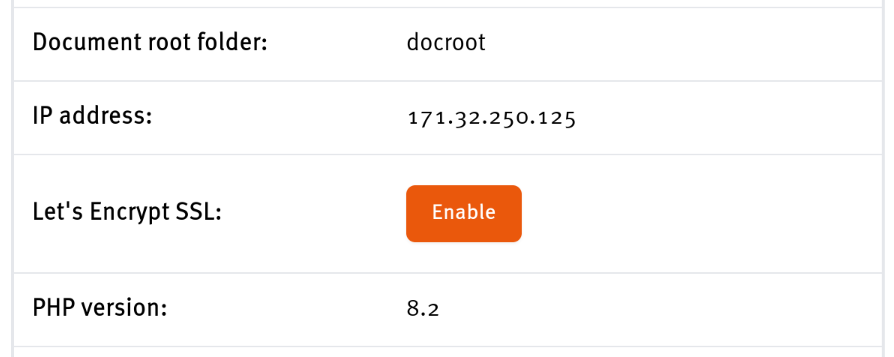
Now simply click the “Enable” button for Let’s Encrypt and after a few minutes,
you’ll be able to reach your website via TLS (https://...). That’s all!
Let’s Encrypt TLS certificates are valid for 90 days. freistilbox will renew
your certificate automatically as soon as it enters the last 30 days of its
lifetime.
Domains assigned to your website that can’t be validated by Let’s Encrypt, for
example because their DNS is not set up correctly, will not be covered by the
certificate issued by Let’s Encrypt. However, as mentioned above, if the main
domain of your website can’t be validated, the certificate won’t be issued at
all.
[!note]
If the freistilbox dashboard says that Let’s Encrypt is “not available”, the
cause is probably that the edge router serving your website traffic doesn’t yet
support Let’s Encrypt TLS. In this case, please contact our DevOps
support and one of our engineers will coordinate the necessary
changes with you.
This document is version controlled - suggest changes on GitLab.